We built telematics to enable you to more accurately track your fleet and provide enhanced card security features through partnership with your ELD provider.
Now you can connect directly to your ELD provider and pair each truck with a specific driver to get location data and other useful information. With this data, we can flag transactions that are seen as suspicious, along with giving you a more comprehensive view of your fleet.
The steps below give you a detailed overview of how to connect to the platform.
1) How Do I Connect?
First thing's first: Let's get you connected to your ELD provider. A couple of clicks and you're good to go!
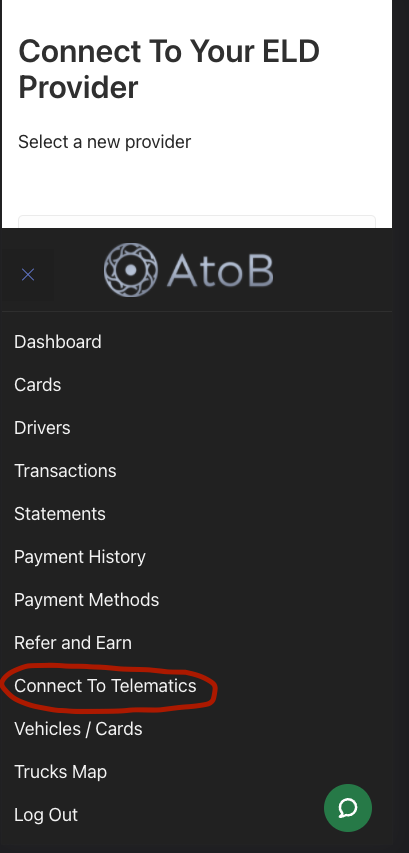
To start, head to the "Connect" screen under the Telematics section on your dashboard.
Mobile Connect Screen

Desktop Connect Screen

From here, click "Connect" on your provider of choice. You will be redirected to that provider's login screen. If you aren't already logged in, enter your credentials. If you are already logged in, it will take you to the next step.
At this point, you will need to authorize AtoB to access your ELD data.
From there, you'll get redirected back to the AtoB Telematics Connect screen. Now you should see you chosen provider at the front of the list.
Note: you will not be able to connect to multiple providers at the same time. Disconnect your current provider to connect to a new one.
2) How Do I Pair Drivers to Trucks?
You can assign any driver you want to any of the vehicles listed. To start, head to the Vehicles / Cards tab where you'll see something similar to the image below.
To assign a new driver, all you have to do is click the "Assign Driver" dropdown, select your driver and click "Assign". You'll get a confirmation message that your driver has been successfully assigned to that vehicle. Piece of cake!
That vehicle will now list all of the cards that are assigned to the driver, and you will be able to view the driver by name in the maps section (which we'll go through below).
3) How Do I Use Maps?
The trucks maps is one of the coolest features of Telematics. You can track your drivers and view the routes they have taken based on the precise waypoints coordinates data collected by your ELD throughout their journey.
Head to the Trucks Map tab under Telematics. You'll see a map, with a dropdown that lists all the Drivers/Vehicles you have listed from your ELD data; if you haven't assigned a Driver to a vehicle, it will display the Vehicle's VIN number instead.
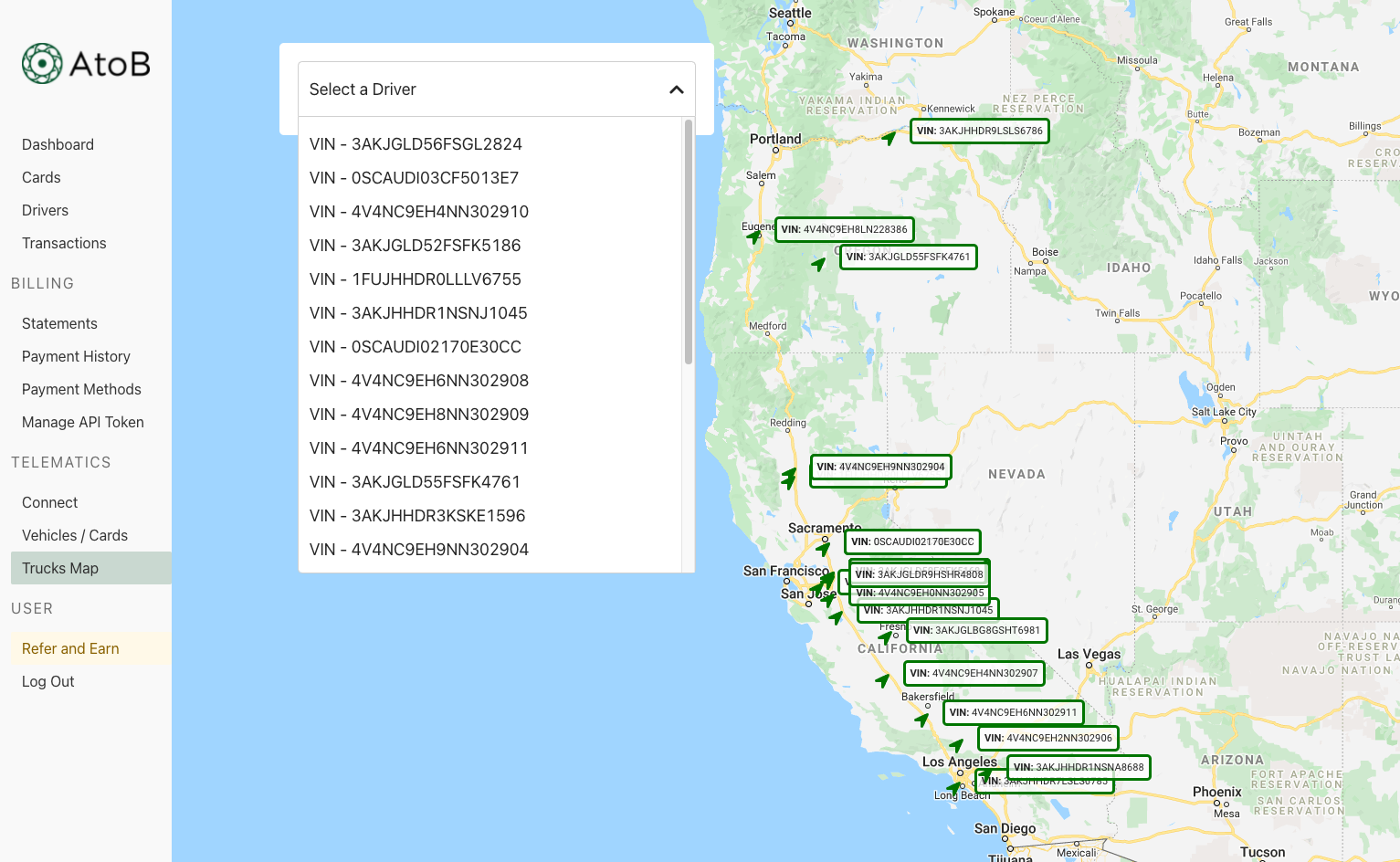
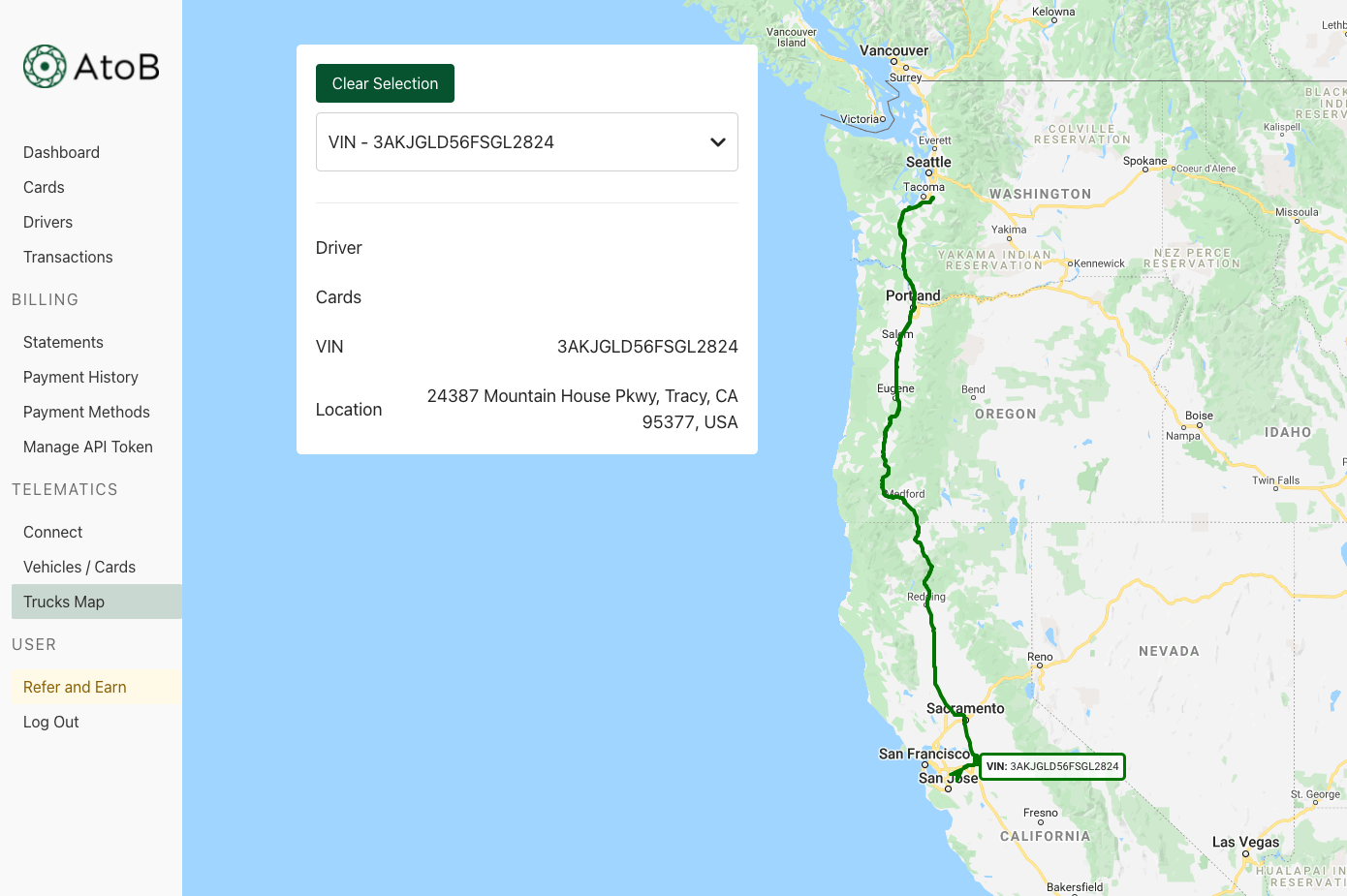
To get detailed information about a vehicle, just click on the one you're interested in. The map will populate with the vehicle's route in green.
A table will also show with some brief summary data of the vehicle.
Comments
0 comments
Article is closed for comments.